VPN Port Forwarding: The Ultimate Guide

Port forwarding is a way to let devices outside your home network connect to specific devices inside it. It can reduce lag and improve reliability for activities like gaming, file sharing, and remote access. While traditional port forwarding happens on your router, doing it through a VPN adds extra privacy and flexibility.
This comprehensive guide covers everything you need to know about VPN port forwarding, how to set it up, and how to use it securely. We’ve even included a few useful extras, like the most popular ports used for specific tasks and default credentials for several router manufacturers.
If you’re looking for a VPN that supports port forwarding, Private Internet Access (PIA) offers easy-to-use, built-in port forwarding on select servers, with no need for extra configuration.
What Is Port Forwarding?
Port forwarding is a networking technique used to open specific ports on your router so that devices from outside your network can reach a device or service running inside your private network.
Think of your router as a security gate. By default, when a connection tries to come in from the internet, your router usually blocks it. This is a good thing and means your network security is working.
However, some tasks require you to let traffic in:
- Online gaming: Some co-op games require players to connect to a central gaming server and exchange data with each other in real time. Port forwarding can fix problems like being unable to connect with friends or host matches.
- Remote access: To access your home network from another location, you’ll need to set rules for a direct, controlled path on your router. With port forwarding, you can map a public port on the router to a specific private port on a device within the local network.
- P2P file sharing: During P2P file sharing, you download parts of a file from other users while simultaneously sending pieces back. Without port forwarding, other users may have trouble connecting to your file-sharing services. This could lead to blocks or poor speeds.
How Does Port Forwarding Work?

Your router has a public IP address assigned by your ISP (internet service provider). It’s what websites and online services see when you connect.
Inside your home, each of your devices (like your PC or gaming console) has a private IP address, like 192.168.1.100. Only your local network uses these private addresses, and they all share the same public IP when accessing the internet.
Now, say you want to run a game server on your PC. Anyone that wants to connect to that server will try to connect to your public IP on a specific port (like port 25565 for Minecraft). But your router doesn’t know which device (at which private IP) to send that request to, so it blocks it.
That’s where port forwarding becomes useful. You can set it to forward traffic entering through port 25565 to 192.168.1.100 (your gaming device).
What Is NAT and Why Does It Matter for Port Forwarding?
NAT stands for network address translation. It’s a feature built into your router that allows multiple devices on your network to share a single public IP address. While NAT helps manage traffic and conserve IP addresses, it also blocks most unsolicited incoming connections from the internet.
NAT can make it hard for external devices to reach devices inside the network directly. Port forwarding solves this by telling your router to allow specific types of traffic (like from a game server, file-sharing app, or remote desktop) to reach a specific device inside your network.
Types of Port Forwarding and When to Use Each
The type of port forwarding you need depends on why and how you want to forward traffic through specific ports.
Static Port Forwarding
This forwards a specific port to the same device inside your network every time. Once configured, the router always forwards requests on that port to the same private IP address. For example, if you’re running a Minecraft server that always uses port 25565, static port forwarding ensures the traffic always goes straight to your gaming PC.
Dynamic Port Forwarding
This is a more advanced method that uses temporary, random ports to create secure, encrypted tunnels, for example, with SSH connections. It’s more secure than the other options but rarely needed for gaming or file sharing.
Universal Plug and Play (UPnP)
With UPnP, devices on your network automatically request the router to open ports for them as needed. Gaming consoles and smart TVs often use this method. It’s fast and convenient, but it can be risky if not secured.
Port Triggering
Port triggering opens an incoming port only when a device first makes an outgoing connection on a specific port. This method is also useful for older games that don’t support UPnP or VoIP apps that only need temporary access.
How to Set Up Port Forwarding with a VPN
Port forwarding with a VPN is safer than setting it up directly on your device. This is because the VPN hides your router’s public IP address behind the VPN server’s IP. It’s also a faster and more convenient option because you can manage port forwarding directly from your VPN without touching your router’s settings.
💡 Expert Tip: What to Look For in a VPN for Port Forwarding
Not all VPNs support port forwarding, so the most important thing is to choose one that does. You’ll also want to make sure it offers fast speeds, a kill switch to avoid data leaks if the VPN unexpectedly disconnects, and a strict no-logs policy to protect your privacy. PIA VPN offers all this, and it allows you to configure port forwarding in just a few clicks or taps on its desktop and Android apps.
Quick Guide: Common Ports for Popular Tasks and Devices
Here’s a quick list of the most common ports for free use, gaming, P2P file-sharing, and secure port forwarding:
- +1,000 – 65,000: More likely to be free
- 20 and 21: File Transfer Protocol (FTP)
- 53: Domain Name System (DNS)
- 80: HTTP (Hypertext Transfer Protocol)
- 80, 443, 3478, 3479, and 3480: PlayStation 4 and 5
- 53, 80, and 3074: Xbox 360 and Xbox One
- 443: HTTP Secure (HTTPS)
- 3306: MySQL
How to Set Up Port Forwarding on Windows with PIA VPN
- Subscribe to PIA, install our VPN app for PC, and log in to your account. Then, click on the three dots in the upper right-hand corner of the app to open the menu.
- Select Settings from the dropdown menu.
- Choose Network from the menu to the left.
- Check the box next to Request Port Forwarding to activate the feature.
- Connect to a VPN server. Your port number will display beneath the VPN IP address on the app interface.


How to Set Up Port Forwarding on Android with PIA VPN
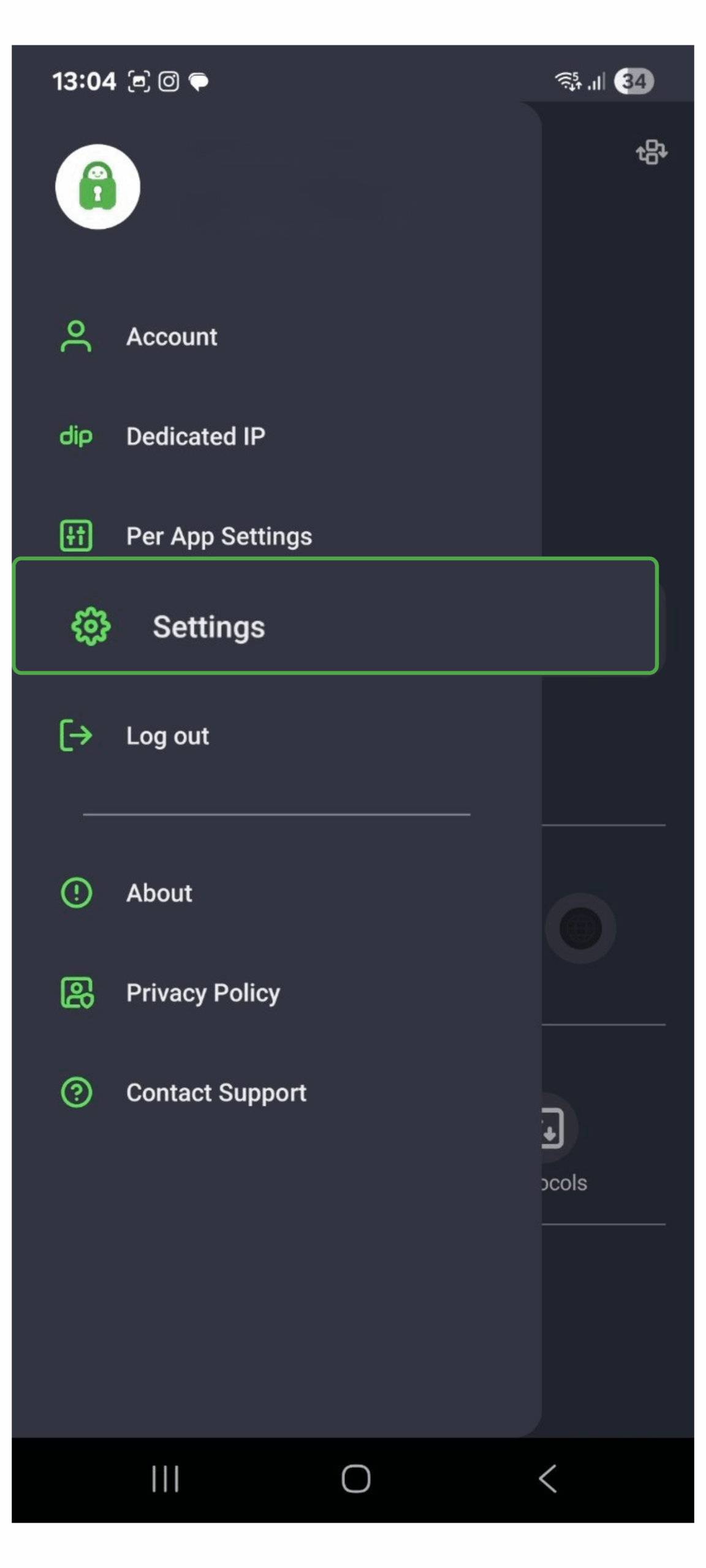
- Tap on the menu (three bars) in the upper left-hand corner of the PIA VPN Android app.
- Select Settings.
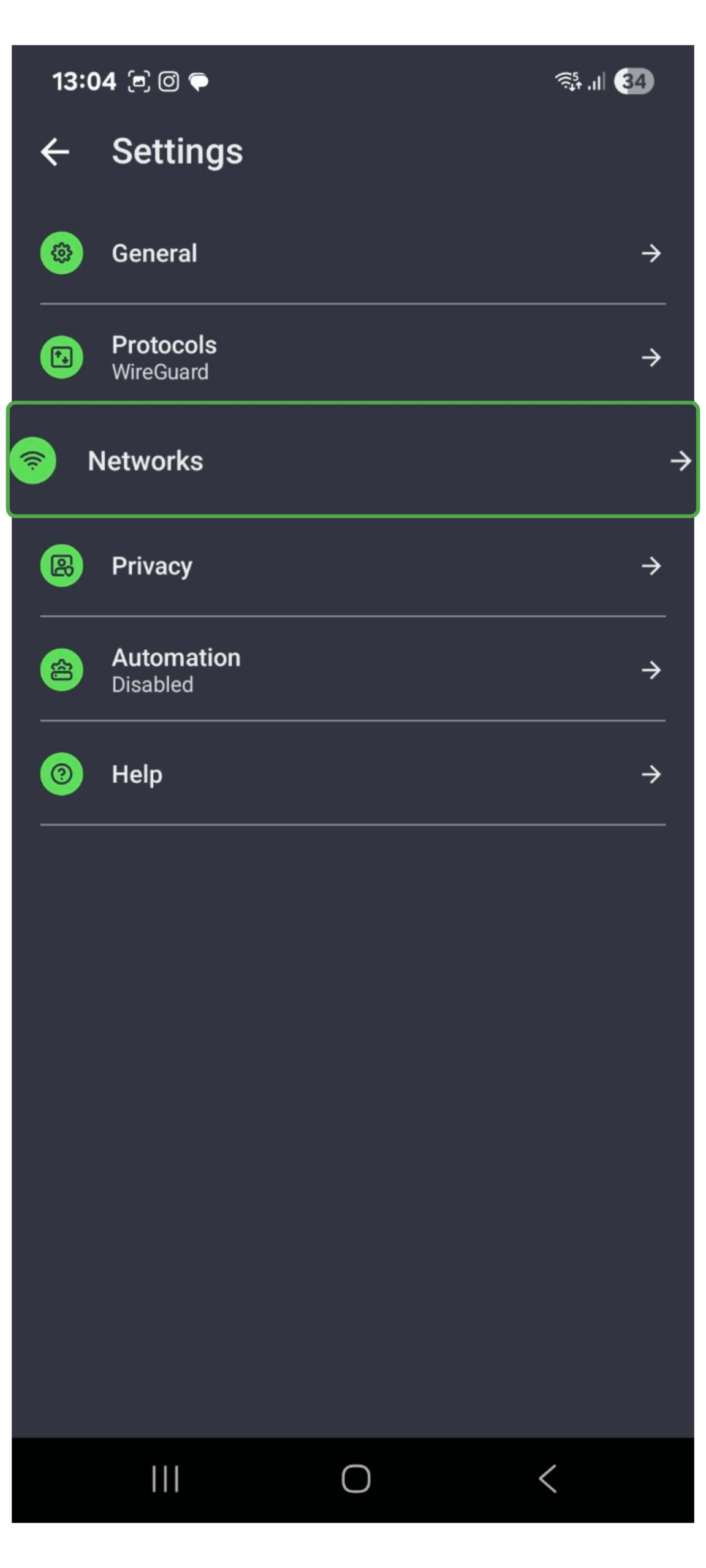
- Tap on the arrow to the right of Networks on the Settings menu.
- Toggle the button to activate port forwarding.
- Connect to a server. You’ll see your port number beneath the VPN IP address on the app interface.


How to Manually Set Up Port Forwarding (Windows and macOS)
If you have specific network requirements and want more granular control, you may decide to set up port forwarding directly on your router. Note that this can expose you to more risks if not done properly. Here’s how to do it safely.
Before You Start
It will speed the process up if you have everything you need on hand while following the instructions.
| What You’ll Need | Where to Find It |
| Your device’s local IP address | Windows: Open Command Prompt and type ipconfig. Look for IPv4 Address. macOS: Go to System Settings > Network > Details. |
| Your router’s IP address | On the same screen as above, look for Default Gateway (Windows) or Router (macOS). This is the address you’ll use to log into your router. Usually something like 192.168.1.1. |
| Your router’s login credentials | Often printed on a sticker on the router. If not, try common defaults (listed below). |
| The port(s) you want to forward | Usually found in your game or app’s documentation. Examples: 25565 for Minecraft, 3074 for Xbox Live. |
Step-by-Step Overview
- Assign a static IP to your device.
- Log in to your router’s admin panel.
- Create a port forwarding rule.
- Open the port in your firewall.
- Test that it’s working.
Step 1: Assign a Static IP
On Windows 11 (GUI method)
- Go to Settings > Network & Internet > Ethernet (or Wi-Fi).
- Click Hardware properties.
- Next to IP assignment, click Edit > Manual.
- Enable IPv4 and fill in:
- IP: 192.168.1.x (choose one not already in use)
- Subnet mask: 255.255.255.0
- Gateway: usually 192.168.1.1
- DNS: use 8.8.8.8 or your preferred DNS
On macOS (Sonoma or Ventura)
- Go to System Settings > Network.
- Click your active connection > Details.
- Under TCP/IP, set Configure IPv4 to Manually.
- Enter:
- IP address: e.g., 192.168.1.150
- Subnet mask: 255.255.255.0
- Router: 192.168.1.1
- Under DNS, enter a server address, for example, 8.8.8.8.
- Click OK and Apply.
Step 2: Log Into Your Router
- Open a web browser and type your router’s IP in the address bar (for most routers, it’s 192.168.1.1).
- Enter your admin username and password.
If you can’t find your admin login credentials or the sticker has worn off, try one of these common defaults:
| Manufacturer | Username | Password |
| D-Link or Belkin | admin | [no default password] |
| Netgear | admin | password |
| Linksys, Asus, DrayTek, TP-Link, or TRENDnet | admin | admin |
| ZyXel | admin | 1234 |
Step 3: Create a Port Forwarding Rule
In your router’s menu, look for “Port Forwarding,” “Virtual Server,” or “NAT Settings.”
Then:
- Click Add Rule or New Entry.
- Fill in:
- Name: Something descriptive like “Minecraft”
- External Port: e.g., 25565
- Internal Port: Same as above
- Protocol: Choose TCP, UDP, or both
- Internal IP: Your static IP from Step 1
- Click Save.
- Reboot your router if prompted.
Step 4: Allow Incoming Connections on Your Device’s Firewall
On Windows:
- Open Windows Defender Firewall.
- Go to Advanced Settings > Inbound Rules > New Rule.
- Choose Port, select the protocol, and enter the port number.
- Allow the connection and set to Private (only choose Public if you’re using a VPN and need the port open on public Wi-Fi).
On macOS:
- Go to System Settings > Network > Firewall.
- If the firewall is enabled, click Options.
- Add the app or service to the list of allowed connections.
Step 5: Test Your Port
Use a port checking tool like canyouseeme.org or portchecker.co to ensure that port forwarding works. Just enter the port number you have forwarded, and the tool will check if it’s open. Keep in mind that the port will only show as open if the router is turned on and the app is actively listening on that port.
How to Set Up Port Forwarding via UPnP (Universal Plug and Play)
UPnP offers a fast and automatic way to forward ports that’s perfect for gaming consoles, P2P apps, or older games that don’t support manual setup.
- Open your browser and log in to your router.
- Choose Network Settings and select Advanced.
- Look for the UPnP or Ports tab, then click on it.
- Turn on UPnP and click Apply or Save.

⚠️ Note: Many routers come with UPnP enabled, but UPnP should only be used when performing activities that don’t require advanced security or entering sensitive information.
How to Set Up Port Forwarding on PlayStation
Port forwarding can help fix NAT type issues, make it easier to join online games, and improve connection stability on PlayStation consoles.
- Open the settings on your PlayStation, click Network, and then select View Connection Status.
- Write down the IP and MAC address for your console.
- Log in to your router, open the port forwarding settings, and input the IP and MAC addresses for the console.
- Select your TCP and UDP ports. If your router supports both, your options are ports 1935, 3074, or 3478-3480. On routers that require separate inputs, your options are:
- TCP ports 1935 and 3478-3480
- UDP ports 3074 and 3478-3479
- Reboot your router and PlayStation.
- Once the devices restart, use a port forwarding checker tool to ensure the steps were successful.
How to Set Up Port Forwarding on Xbox
- Open the settings menu on your Xbox, and select the General tab.
- Click on Network Settings and choose Advanced Settings.
- Write down the following information: IP address, subnet mask, gateway, and DNS.
- Open a web browser and log in to your router.
- Set a static IP (optional). Find your Xbox in your router’s device list, then look for an option like Always use the same IP address or Reserve IP and enable it. This keeps your port forwarding rule from breaking if your Xbox IP changes.
- Create a port forwarding rule. Go to your router’s Port Forwarding, Virtual Server, or NAT settings, and add a new rule. Enter UDP ports 88, 500, 3544, and 4500, and TCP/UDP port 3074.
- Save your router settings, then reboot your router and Xbox.
- Once the devices restart, open your Xbox settings and select the Network tab. Then select the Test NAT type file, and you should see Open NAT on your Xbox.
What Are the Risks of Port Forwarding?

Port forwarding can make online tasks faster or connections more direct, but it also creates security risks, especially if you’re not using a VPN.
- Exposure to the internet: When you open a port, you’re creating a direct path from the internet to a device on your network. Hackers can scan for open ports and try to exploit known vulnerabilities of the service using that port. If successful, they can gain access and steal data, install malware, or take control of your system.
- Bypassing firewalls and NAT: Your router and firewall are designed to block most outside traffic by default. Port forwarding overrides that protection, which removes a critical layer of defense. It essentially leaves your system more exposed to probes, exploits, and unauthorized access attempts.
- Privacy breaches via VoIP or smart devices: If you’re forwarding ports for VoIP services, attackers can hijack those connections, eavesdrop on conversations, watch through your camera, or even manipulate your devices themselves.
- DDoS exposure: When you forward ports without protection, you’re exposing your real IP address to the internet. That makes you an easy target for Distributed Denial-of-Service (DDoS) attacks, where attackers flood your IP with traffic to slow down or crash your internet connection.
How to Use Port Forwarding Securely

The safest way to port forward is to take extra steps to increase your privacy and security.
Port Forward with a VPN
A VPN protects your traffic with strong encryption. That means even if an attacker intercepts your data as it travels from your device to the VPN server, all they’ll see is a bunch of illegible symbols.
A VPN reroutes all of your traffic through one of its servers. As long as your VPN supports port forwarding, all incoming connections will reach the VPN server first, making it safer to share files, host servers, or access home services remotely.
Port forwarding with a VPN is quick and easy to set up, and it bypasses the need to manually configure your router settings. It’s also generally safer than a manual setup because the VPN server masks your real IP address. This makes it much harder for attackers to directly target your personal network. If someone scans for open ports, they’ll see the VPN server’s IP address instead of yours, making you less identifiable and more difficult to target.
Don’t Set Up Multiple Ports
Setting up forwarding to multiple ports is unnecessary and creates more openings for attackers to exploit. Restrict unused ports and only open ports you need for active use. You can also try using less common ports to make it harder for attackers to find you.
Use a Firewall
Create rules in your firewall allowing only specified IP addresses to access the forwarded ports. You can also enable logging to monitor who is trying to access the port.
Use Strong Authentication
The service using the port should require a login with a complex password or, better yet, an SSH key. If you’re exposing SSH, it’s better to disable password authentication and use key-based login instead.
Update Device Software
Any device you use with port forwarding needs up-to-date firmware, OS, and security patches to help increase safety. Out-of-date software can leave devices vulnerable to malicious software and other network threats, even when you’re using a VPN.
FAQ
How do I test port forwarding?
You can test if port forwarding is successful using a port checking tool. Simply enter the port number you used, and the tool will let you know if port forwarding was successful. If you’re port forwarding via the PIA VPN app, you will see the port number beneath the VPN IP address on the main interface.
What VPN providers allow port forwarding?
PIA VPN supports port forwarding for Windows, macOS, Linux, and Android devices. Enabling port forwarding with PIA is easy, and our strict no-logs policy means we never track your online activity.
What port does Always On VPN use?
If you’re configuring Always On VPN manually, your firewall or router must allow UDP port 500 for IKE (Internet Key Exchange) and UDP port 4500 for IPsec NAT traversal. These ports must be open and forwarded to the external IP address of your VPN server.
How do I enable port forwarding?
It depends on your operating system and device. Enabling port forwarding is generally easier on a VPN or router because it usually requires minimal manual configuration. The security risks increase during manual configuration due to the possibility of human error.
What can I use instead of port forwarding?
In many cases, you can use a VPN instead of traditional port forwarding. For example, a VPN allows you to access work resources, use P2P file sharing, and play online games as a client, all while encrypting your traffic and hiding your IP address.
However, if you need to accept incoming connections (like hosting a game server or web service), you’ll still need a VPN that supports port forwarding. PIA is one of the few VPNs that offer this feature, and you can enable it directly from the app on supported servers with just a few clicks.
Is port forwarding faster?
Port forwarding doesn’t make your connection faster; it’s meant to route traffic correctly. While it can reduce latency because the router will know exactly where to forward the outside traffic, your overall speeds are ultimately determined by your ISP. If your ISP limits your speed or bandwidth, using port forwarding won’t negate that.
Does port forwarding have risks?
Yes, port forwarding can increase your vulnerability to cyber attacks by opening a direct path into your network. Without proper protection, that can increase your risk of hacking, malware, or DDoS attacks.
Does port forwarding reduce ping?
No. Port forwarding doesn’t directly affect ping speeds. Ping measures the time it takes for data to travel between devices, specifically your device and the server. Port forwarding doesn’t change any of that. It simply tells your router where to send certain incoming traffic. It can help improve your connection stability by enabling certain inbound connections that might otherwise be blocked, but it won’t affect speeds for data you send.
Is port forwarding necessary for torrenting?
It isn’t necessary, but port forwarding can help with seeding. It allows your device to accept incoming connections, which can increase your availability to other peers in the swarm. This can improve file-sharing performance and may lead to faster download speeds.
